Tabs
Every open file gets a tab, as in Notepad++. Opening a file that is already open brings its tab forward rather than taking a second copy of it, and a file opened while the current tab is an untouched Untitled one takes that tab over instead of leaving it behind empty.
Each tab keeps its own text, undo history, caret and place in the document; an unsaved one is marked with a *. Tabs can be dragged into another order, closed with their ×, with a middle click or with Ctrl+W, and right-clicking one offers Close, Close Others, Close Tabs to the Right, Close All, Pin Tab, Copy Full Path, Open Containing Folder and Rename File.
Pinned tabs stay at the front and survive Close All, Close Others and a middle click. Ctrl+Shift+T reopens the last tab closed, and File › Save All saves every modified one.
Closing the last tab leaves an empty one rather than an empty window, and quitting asks about each modified file in turn. Files dropped on the window — several at once, if you like — and files named on the command line each open in a tab of their own. Image files are the exception: dropped on the window, they are inserted into the document as pictures rather than opened as text (see Writing tools).
Sessions, drafts and backups
Your last session comes back. The files open at exit reopen on the next launch, in the same order, with the same tab in front, each at its caret and scroll position and in the same view mode. Turn it off with Reopen the files from the last session on startup in Editor Settings › General.
Unsaved work is kept as a recovery draft. Every few seconds, each document with unsaved changes — Untitled tabs included — is copied to the app's local data folder. After a crash, MarkPad++ offers the drafts on the next launch: Recover, Discard or Ask Later. A draft is dropped as soon as its document is saved, discarded or closed.
Saving is atomic. The text is written to a temporary file that replaces the original only once it is complete, so a full disk or a crash can no longer leave a truncated file. The version on disk is kept as a backup before it is overwritten — the five most recent per file, in File › Open Backups Folder — unless you switch that off in Editor Settings › General.
If another program changed a file since it was opened, saving over it asks first, and File › Reload from Disk (F5) brings in the version on disk.
Reader mode
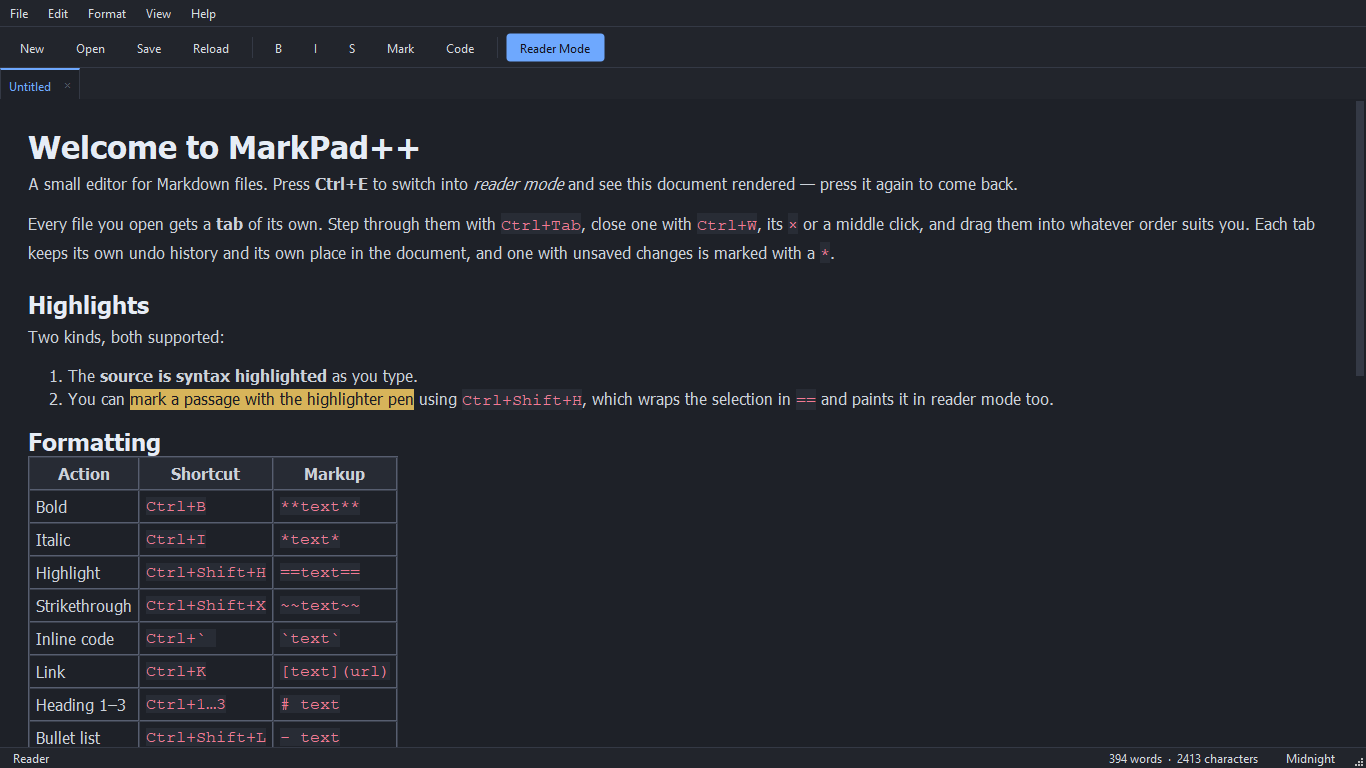
Ctrl+E toggles reader mode. The source is highlighted as you type; the rendered view picks up the same theme, and keeps your place — the reader opens at whatever the editor was showing, and scrolling the reader and coming back moves the editor to match. Toggling without scrolling leaves the editor exactly where it was.
Ctrl+F, F3 and Shift+F3 work in reader mode too, searching the rendered text and highlighting the hits there. Links to places in the same document — footnotes, a table of contents, #anchor links — scroll the reader to them.
Highlights are covered in both senses: the source is syntax highlighted, and ==text== is a marker pen that paints the passage in the editor and in reader mode.
Split Screen
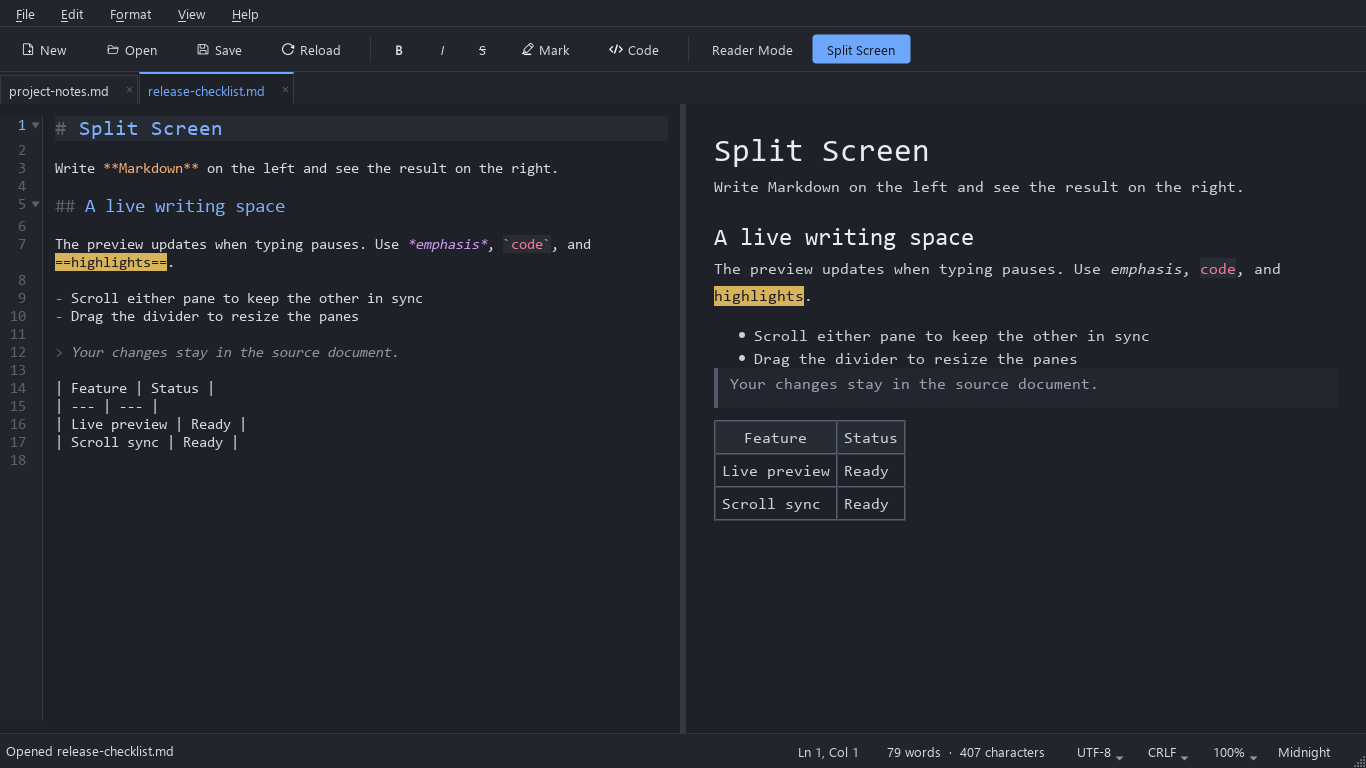
View › Split Screen, the Split Screen toolbar button or Ctrl+Shift+E shows the source on the left and a live preview on the right. The preview updates 350 ms after typing pauses, and scrolling either pane keeps the other on the corresponding content.
Drag the divider to adjust the widths; the proportions are remembered between sessions. Toggle Split Screen off to return to the editor, or choose reader mode for a full-width rendered view.
Find and replace keep working in Split Screen, because they search the source. Ctrl+C copies from whichever pane has focus, so rendered text can be copied straight out of the preview.
Writing tools
- Lists continue. Enter continues a bullet, numbered or task list or a block quote; Enter on an empty item ends the list. Switch it off in Editor Settings › Layout & Editing.
- Pictures. Pasting a picture, or dropping image files on the editor, stores them in an images folder next to the document and inserts relative Markdown image links. Format › Image… (Ctrl+Shift+I) does the same from a file dialog. The document has to be saved first, so the pictures have a folder to go to.
- Tables. Format › Table inserts a table of a chosen size, formats (aligns) the table at the caret, inserts or deletes rows and columns, and sets a column's alignment.
- Table of contents. Format › Table of Contents inserts a linked list of the headings as Markdown, or updates the one already there. A [TOC] line renders one automatically instead.
- Line operations. Edit › Line Operations: Duplicate Line or Selection (Ctrl+D), Move Line Up and Down (Alt+Up / Alt+Down), tabs to spaces and back, and Trim Trailing Whitespace — on request only, because two trailing spaces are a Markdown line break.
- Convert Case. UPPERCASE (Ctrl+Shift+U), lowercase (Ctrl+U) and Title Case.
All shortcuts
Applying a format a second time removes it, so the shortcuts toggle. Heading shortcuts replace an existing heading level rather than stacking onto it. Every shortcut below can be changed in Edit › Keyboard Shortcuts.
| Action | Shortcut | Markup |
|---|---|---|
| Bold | Ctrl+B | **text** |
| Italic | Ctrl+I | *text* |
| Highlight | Ctrl+Shift+H | ==text== |
| Strikethrough | Ctrl+Shift+X | ~~text~~ |
| Inline code | Ctrl+` | `text` |
| Link | Ctrl+K | [text](url) |
| Heading 1–3 | Ctrl+1…3 | # text |
| Bullet list | Ctrl+Shift+L | - text |
| Quote | Ctrl+Shift+Q | > text |
| Insert image | Ctrl+Shift+I |  |
| View | ||
| Reader mode | Ctrl+E | — |
| Split Screen | Ctrl+Shift+E | — |
| Outline | Ctrl+Shift+O | — |
| Fold / unfold section | Ctrl+Shift+[ / Ctrl+Shift+] | — |
| Zoom in / out / reset | Ctrl++ / Ctrl+- / Ctrl+0 | — |
| Editing | ||
| Editor settings | Ctrl+, | — |
| Indent selected lines | Tab | — |
| Remove one indent level | Shift+Tab | — |
| Duplicate line or selection | Ctrl+D | — |
| Move line up / down | Alt+Up / Alt+Down | — |
| UPPERCASE / lowercase | Ctrl+Shift+U / Ctrl+U | — |
| Go to line | Ctrl+G | — |
| Find | ||
| Find | Ctrl+F | — |
| Replace | Ctrl+H | — |
| Find next | F3 | — |
| Find previous | Shift+F3 | — |
| Find in all tabs | Ctrl+Shift+F | — |
| Files and tabs | ||
| New tab | Ctrl+N | — |
| Open | Ctrl+O | — |
| Save | Ctrl+S | — |
| Reload from disk | F5 | — |
| Ctrl+P | — | |
| Close tab | Ctrl+W | — |
| Close all | Ctrl+Shift+W | — |
| Reopen closed tab | Ctrl+Shift+T | — |
| Next tab | Ctrl+Tab / Ctrl+PgDown | — |
| Previous tab | Ctrl+Shift+Tab / Ctrl+PgUp | — |
Edit › Keyboard Shortcuts lists every menu command with its shortcut. Search by command or by key, then change, clear or reset any of them, or reset them all. A shortcut given to a new command is taken from the command that had it, so two commands never share one.
Editor settings
Open Edit › Editor Settings (Ctrl+,) to customize the editor. A live preview lets you try the changes before applying them to your documents.
- General: the interface language, reopening the last session's files on startup, keeping backup copies before overwriting a file, and Export Settings / Import Settings, which save the applied preferences, theme and shortcuts to a file and bring them back on another PC.
- Font family, size, bold and italic styles, text and background colors, or the active theme's defaults; Markdown syntax highlighting can be switched off.
- In Appearance, select a Markdown element to set its syntax color: headings, bold, italic, inline code, code blocks, links, quotes and more, including code and highlight backgrounds. Use Theme restores just the selected color; other custom colors stay in place.
- Word wrapping, line numbers, current-line highlighting and text padding.
- Layout & Editing › Scrolling switches between the classic scrollbar and a Sublime Text style minimap. The minimap shows the entire source document with syntax colors and a visible-area indicator; click, drag or use the mouse wheel to navigate. Classic scrolling remains the default.
- Tab width, spaces instead of tabs, automatic indentation on new lines, and continuing lists and quotes on Enter.
- Independent guides for tabs, spaces (including non-breaking spaces), and line endings. These guides are not saved in files or included in exports.
Use Tab to indent selected lines and Shift+Tab to remove one level. The dialog says when changes are not applied yet, and Apply is enabled only then; it saves them without closing the dialog. OK saves and closes it. Cancel discards changes made since the last Apply. Restore Defaults previews the defaults until you apply or confirm them.
Settings apply to all tabs, persist between launches, and leave document text and undo history intact.
Files and export
File › Open Recent lists the last ten files opened or saved, most recent first; an entry that has since been moved or deleted drops off the list instead of staying there to fail again. Dropping a file anywhere on the window — the editor included — opens it rather than pasting its path. Ctrl+C copies from whichever view is showing, so the rendered text can be copied out of reader mode.
File › Export writes the rendered document (without Markdown punctuation) as PDF (.pdf), OpenDocument Text/ODF (.odt), Microsoft Word (.docx), or a standalone web page (.html) with inline styles. Export uses a print-friendly light theme, resolves relative images beside the source Markdown file — a web page saved in another folder gets its image paths rewritten to match — and does not change the open file or its modified state. File › Print (Ctrl+P) prints the rendered document.
Files are always read and written as UTF-8, and keep their byte order mark and their line endings (LF or CRLF) when saved. The status bar shows both; click either to change how the file is saved from then on.
MarkPad++ keeps to one window: opening a file from Explorer adds a tab to the window already open. A copy run from another folder, such as a local build next to the installed one, opens its own window, and --new-instance always does. Help › About shows the version, build time, commit and Qt version, with Copy Details for bug reports; --version prints the same.
Find and replace
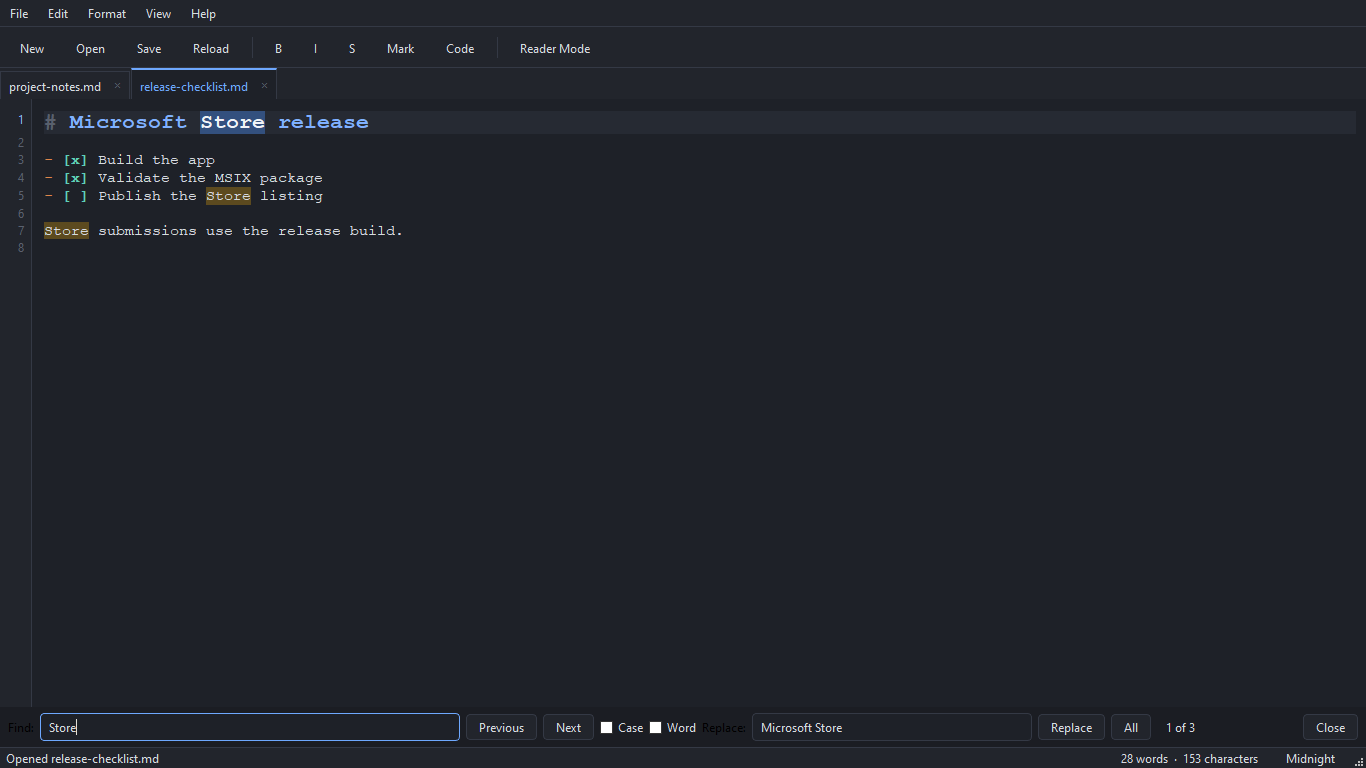
Find highlights every hit at once and wraps around. Next to the fields are four switches:
- Case — match upper and lower case exactly.
- Word — whole words only; Cyrillic and other non-Latin letters count as word characters.
- Regex — a regular expression. In the replacement, \1 or $1 insert a group and \n a new line. Without it the term is literal: a . matches a dot.
- In selection — search only inside the text that was selected.
Up and Down in the fields step through the terms you searched for before. Replace All is one undo step. All Tabs, or Edit › Find in All Tabs (Ctrl+Shift+F), lists every match in every open tab in a Search Results panel; click one to go there. In reader mode the find bar searches the rendered text instead of the source.
Markdown supported
ATX and setext headings, fenced (``` and ~~~) and indented code blocks, blockquotes with lazy continuation, nested ordered/unordered lists, task lists (- [x]), pipe tables with alignment, thematic breaks, emphasis, strong, strikethrough, ==highlight==, code spans, links, images, autolinks, bare URLs, backslash escapes and hard line breaks.
Also reference-style links and images ([text][id] with [id]: url "title"), footnotes ([^id] with [^id]: text, numbered and listed at the end of the rendered document), and a [TOC] line that renders a linked list of the headings. Headings get GitHub-style anchors, so [see below](#my-heading) works, and HTML comments are not shown in the reader.
Languages
The interface is available in English, Ukrainian, French, Spanish and Portuguese (Brazil) — menus, dialogs, Qt's standard buttons, the installer, and the Markdown cheat sheet in Help. MarkPad++ follows the Windows display language, falling back to English when there is no translation into it.
To choose another, open Edit › Editor Settings › General › Language. The new language applies at once — menus, toolbar, status bar, panels, tab names and the open dialog switch without a restart. This site is translated too: Українська, Français, Español, Português (Brasil).
Themes
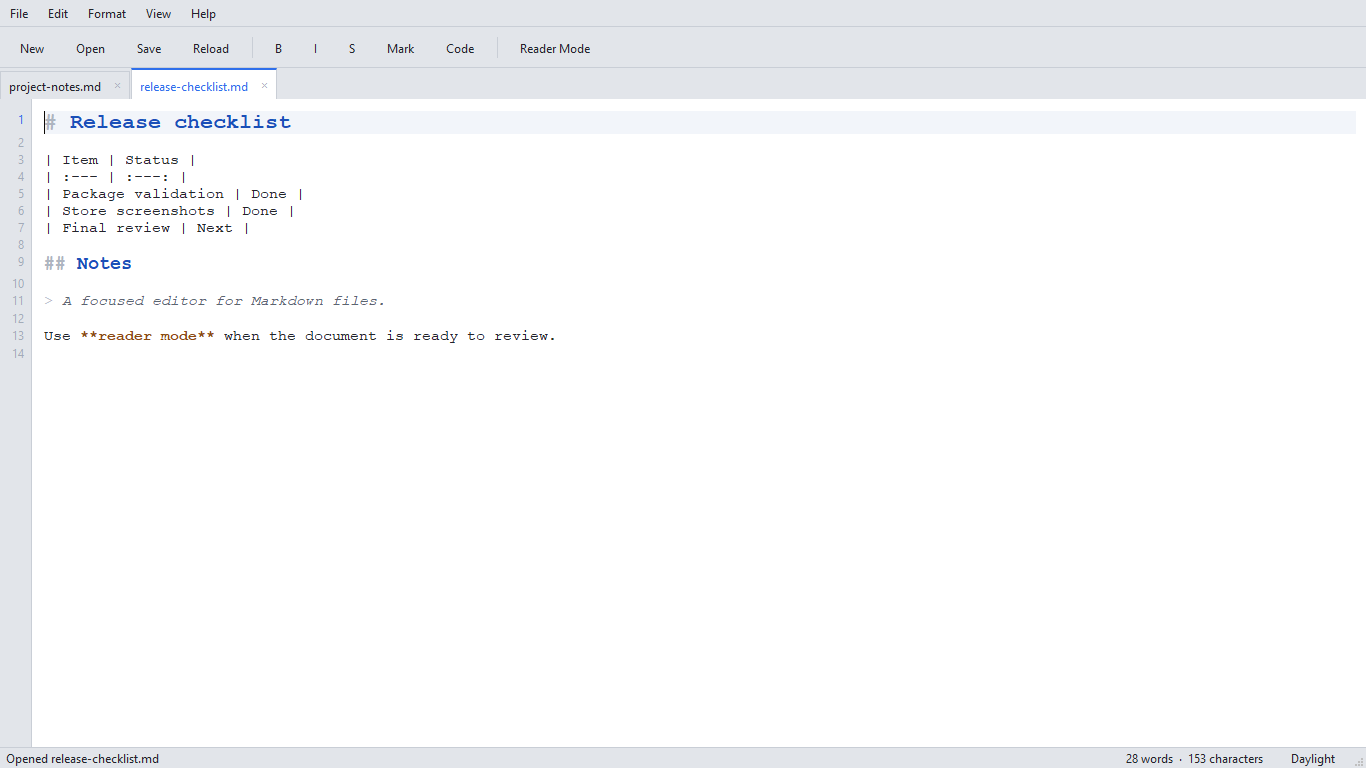
Themes are built in. Switch with View › Theme to choose the light or dark theme. A theme sets the window, menus, toolbar, editor surface and gutter; the Markdown tokens drawn in the editor; and the rendered page. User theme files are not supported in this release.
The editor's font and colors can be overridden in Editor settings; everything left alone follows the theme.
Limits
Entering reader mode costs roughly 20 ms per KiB of Markdown, so a 200 KiB document takes about four seconds; documents of a few KiB are instant. The rendered view is cached and only rebuilt when the text or the theme actually changed. Split Screen pays the same cost each time it refreshes the preview after a typing pause, so on very large documents the preview takes a moment to catch up. Typing is unaffected — about 0.2 ms per keystroke at 400 KiB — and search stays interactive because only the hits inside the viewport are painted.
Not implemented: formatting the text in place as you type (the preview sits beside the source), Mermaid diagrams, LaTeX-style math, spell checking, plugins and user theme files. Raw block-level HTML is escaped rather than passed through; a small whitelist of inline tags (<br>, <sub>, <kbd>, …) is passed through.
Requirements
Windows 10 version 1809 or newer, x64. Installed and updated through the Microsoft Store.
Get it on the Microsoft Store