1.0.5
Current release
What's new in MarkPad++ 1.0.5
Your work is safe
- Unsaved documents, including Untitled tabs, are kept as recovery drafts every few seconds. After a crash MarkPad++ offers to recover them on the next launch (Recover / Discard / Ask Later).
- The files open at exit come back on the next launch, in the same order, with the same tab in front, each at its caret and scroll position, and in the same view mode. Switch it off in Editor Settings › General.
- Saving is atomic: the text is written to a temporary file that replaces the original only once it is complete, so a full disk or a crash can no longer leave a truncated file.
- The version on disk is kept as a backup before it is overwritten (the five most recent per file; File › Open Backups Folder).
- Saving over a file that another program changed since it was opened asks before overwriting it.
Finding your way
- Added an Outline panel (View › Outline, Ctrl+Shift+O) listing the document's headings as a tree; click one to jump to it. The selection follows the section the caret is in.
- Find (Ctrl+F, F3, Shift+F3) works in reader mode as well, searching the rendered text and highlighting the hits there.
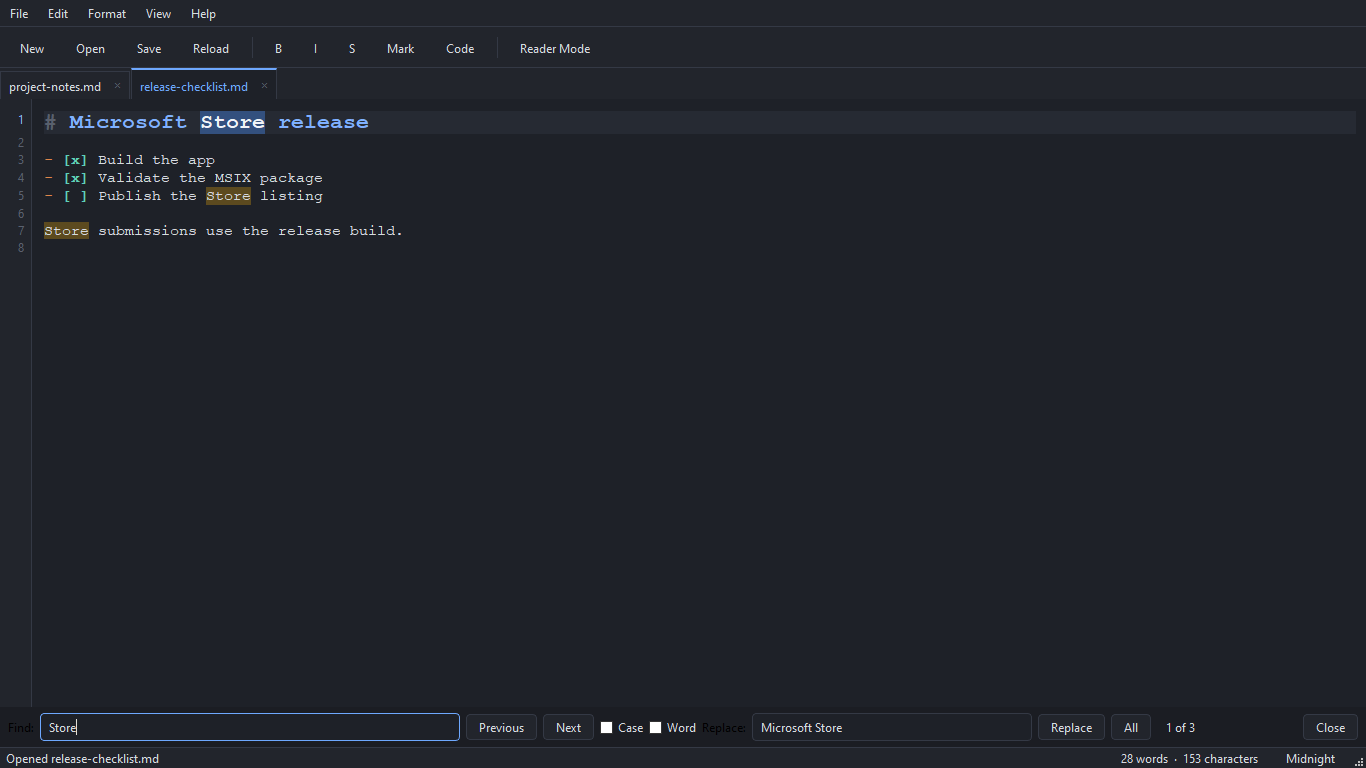
- Find and replace gained regular expressions (with \1/$1 groups and \n in the replacement), searching only inside the selection, a remembered history of terms (Up/Down in the fields), and Find in All Tabs (Ctrl+Shift+F) listing every match in a Search Results panel.
- Whole-word search now recognises Cyrillic and other non-Latin letters.
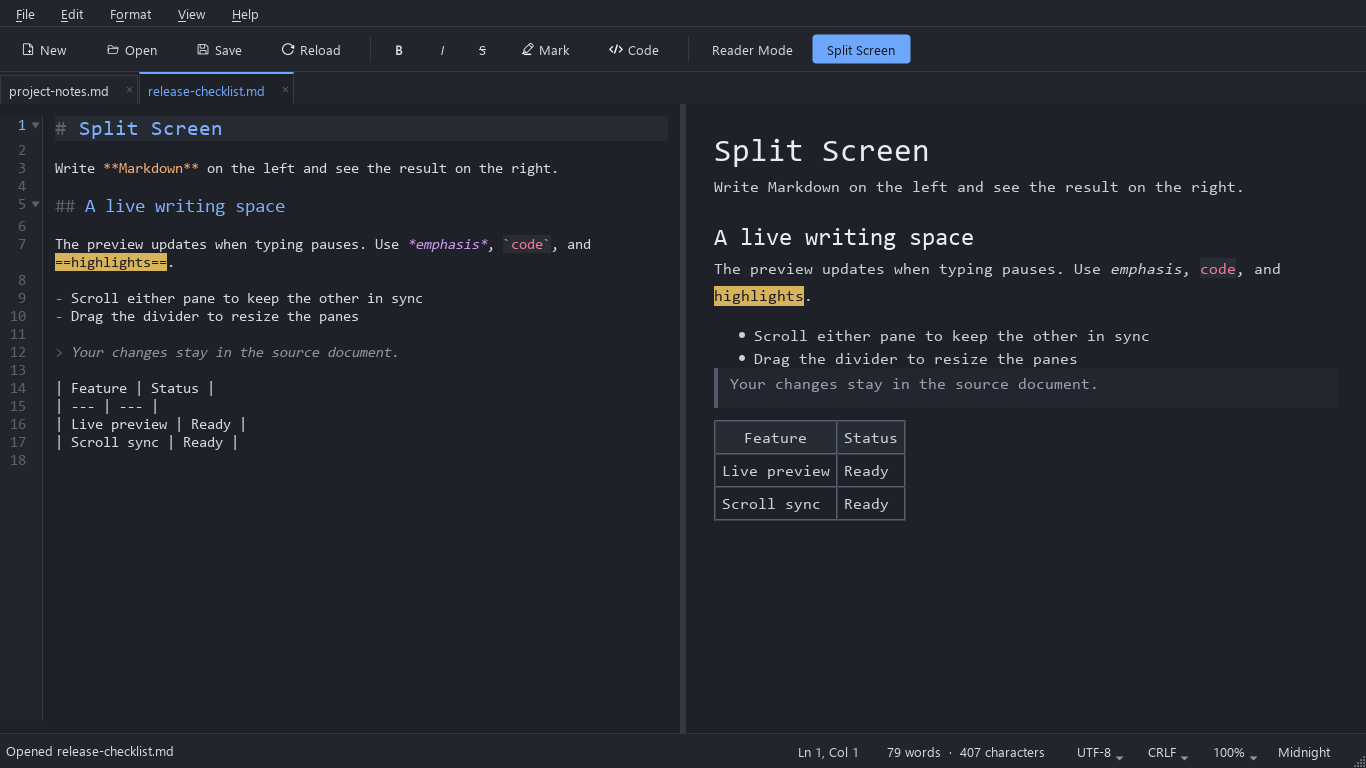
- Go to Line (Ctrl+G, accepts line:column). The status bar shows the caret's line and column, the selection size, the encoding and the line endings; click the last two to change how the file is saved.
- Sections and fenced code blocks can be folded: click the marker in the gutter, or use View › Folding (Ctrl+Shift+[ / Ctrl+Shift+], Fold All, Unfold All). A caret landing in folded text unfolds it.
- Zoom for the editor and the reader together: View › Zoom (Ctrl++, Ctrl+-, Ctrl+0) or Ctrl+mouse wheel, with the current zoom shown (and selectable) in the status bar. It is remembered between sessions.
Writing and editing
- Enter continues bullet, numbered and task lists and block quotes; Enter on an empty item ends the list. Switchable in Editor Settings.
- Pasting a picture or dropping image files stores them in an images folder next to the document and inserts relative Markdown image links (also Format › Image…, Ctrl+Shift+I). Image files are no longer opened as text tabs.
- Added table tools (Format › Table): insert a table of a chosen size, format (align) the table at the caret, insert or delete rows and columns, and set a column's alignment.
- Line operations: Duplicate (Ctrl+D), Move Line Up/Down (Alt+Up/Alt+Down), tabs to spaces and back, and Trim Trailing Whitespace (on request only, as two trailing spaces are a Markdown line break). Convert Case: UPPERCASE (Ctrl+Shift+U), lowercase (Ctrl+U), Title Case.
- Tabs: Save All, Reopen Closed Tab (Ctrl+Shift+T), Pin Tab (pinned tabs stay at the front and survive Close All / Close Others / middle click), Open Containing Folder, Rename File and Close Tabs to the Right.
- Files keep their byte order mark and line endings (LF or CRLF) when saved.
Markdown and export
- Reference-style links and images ([text][id] with [id]: url "title") and footnotes ([^id] with [^id]: text, listed and numbered at the end of the rendered document). Links to places in the document scroll the reader there.
- Table of contents: [TOC] renders a linked list of the headings, and Format › Table of Contents inserts (or updates) one as Markdown. Headings get GitHub-style anchors; HTML comments are no longer shown in the reader.
- Export to a standalone web page (.html) with inline styles; relative image paths are rewritten when the page is saved in another folder.
Settings and languages
- Keyboard shortcuts can be customised (Edit › Keyboard Shortcuts…): search, change, clear or reset any menu command's shortcut; a shortcut moved to a new command is taken from the old one.
- Editor Settings shows when changes are not applied yet (Apply is only enabled then) and gained a General tab with the interface language and Export / Import Settings.
- Ukrainian, French, Spanish and Portuguese (Brazilian) translations of the whole interface, including Qt's standard buttons, a cheat sheet in each language and installer languages. The language follows the system's display language (English when there is no translation into it) or can be chosen in Editor Settings › General.
- Choosing another interface language takes effect at once: menus, toolbar, status bar, panels, tab names and the open settings dialog switch without restarting MarkPad++.
Under the hood
- Help › About shows the build time, the git commit, the Qt version and the path of the running executable, with Copy Details; --version prints the same build identity.
- A MarkPad++ run from another folder (a local build next to the installed one) now opens its own window instead of handing files to the other; --new-instance always opens a separate window. Such a window neither restores nor overwrites the main window's session, and restoring a session no longer reorders the recent files.
- Built with Qt 6.12 on Windows.