Guide
A Markdown Editor with Live Preview for Windows
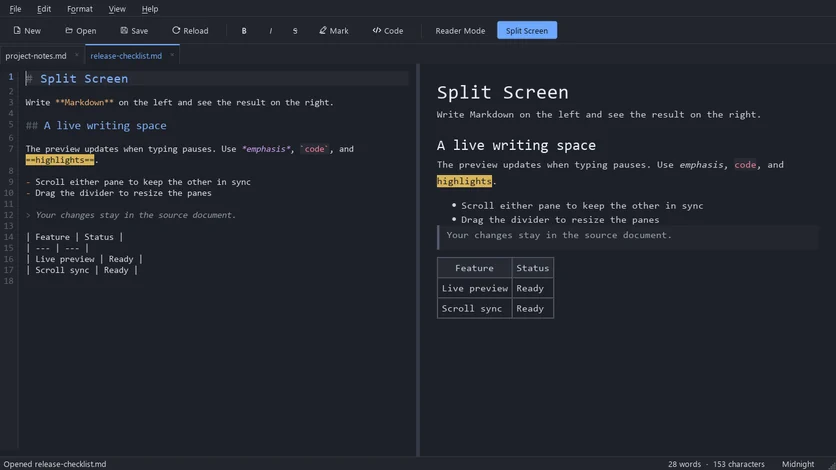
Write Markdown on the left and watch it render on the right. MarkPad++ 1.0.4 adds Split Screen: a free, offline live preview for Windows with synced scrolling.
You are writing a README. You add a table, and somewhere among all those pipes a column has gone missing. You add a nested list, and you cannot tell whether the indentation will hold. You could stop, switch to a preview, look, and switch back — or you could simply watch the page take shape as you write it.
That is what a live preview is for. MarkPad++ 1.0.4 adds Split Screen: your Markdown on the left, the formatted page on the right, updating as you work. It is free, works offline, and needs no plugin.
Three ways editors show formatted Markdown
“Live preview” means slightly different things in different apps, so it helps to know which kind you are looking for:
| Kind of preview | What you see | Where you find it |
|---|---|---|
| Side by side | The Markdown source and the rendered page next to each other | MarkPad++ Split Screen, VS Code, Markdown Panel for Notepad++ |
| Inline | Formatting appears in the line you are typing, and the symbols step aside | Typora, Obsidian |
| Switched view | The whole window flips between source and rendered page | MarkPad++ reader mode |
Side by side keeps every character of your Markdown in view, which is what you want when the syntax itself matters: tables, nested lists, links and code blocks. You see exactly what you typed and exactly what it becomes.
Turn on Split Screen
With MarkPad++ installed:
- Open a
.mdfile with Ctrl+O, or drag it onto the window. - Press Ctrl+Shift+E. You can also choose View > Split Screen, or click Split Screen on the toolbar.
- Write on the left. The preview on the right catches up as soon as you pause.
Press Ctrl+Shift+E again to go back to the editor on its own.
How the two panes stay in step
A preview beside the source is only comfortable if it keeps up with you without getting in the way. Split Screen looks after a few things quietly:
- It waits for a pause. The preview refreshes 350 milliseconds after you stop typing, so it does not flicker under every keystroke.
- Scrolling is shared. Scroll the source and the preview moves to the same passage; scroll the preview and the source follows back. That second direction is handy when you are reading the rendered page and spot something to fix.
- The divider is yours. Drag it to give the source or the preview more room. MarkPad++ remembers the proportions for next time.
- The rest of the editor still works. Find and replace search the source as usual, and formatting shortcuts such as Ctrl+B toggle in the source pane. Ctrl+C copies from whichever pane has focus, so formatted text can be copied straight out of the preview.
Split Screen, reader mode, or the editor alone?
| When you are... | Use |
|---|---|
| Building tables, lists and links, and want to check them as you go | Split Screen, Ctrl+Shift+E |
| Reading a finished draft, or proofreading without the Markdown | Reader mode, Ctrl+E |
| Drafting prose where the formatting can wait | The editor on its own |
Reader mode gives the rendered page the whole window and keeps your place when you switch back, so it remains the better choice for a long read-through. Split Screen is for the writing itself. The documentation covers both in more detail.
Make the writing side comfortable too
If you are going to spend your time in the left-hand pane, it may as well suit you. Edit > Editor Settings (Ctrl+,) sets the font and a colour for each kind of Markdown element — headings, bold, links, code — and can swap the scrollbar for a minimap of the whole document. The dialog shows your changes in its own preview before you apply them.
What it does not do
A few honest limits, so there are no surprises:
- The preview sits beside your text; it does not format the text itself. If you want headings to grow and asterisks to disappear as you type, Typora and Obsidian's inline Live Preview are closer to that.
- No diagrams or maths. Mermaid diagrams and LaTeX-style equations are not rendered.
- Very large files take a moment. The preview renders the whole document after each pause, so on very long files it trails a little behind you. Everyday notes and READMEs update straight away.
- Windows only. There is no macOS or Linux version.
Try it on a file you already have
Open a README or a set of notes you know well, press Ctrl+Shift+E, and change a table cell or a list item. Watch the right-hand side follow. When the document is ready, File > Export turns the same Markdown into a PDF or a Word file.
MarkPad++ is free on the Microsoft Store, with no account and no internet connection needed.
Try it yourself
MarkPad++ is a free, offline Markdown editor for Windows 10 and 11. A live preview beside your text, no account, no telemetry, and export to PDF, Word and OpenDocument built in.
Written in Markdown, of course — read this article as a .md file.