Guide
How to Open a .md File on Windows
Learn how to open, read, and edit .md files on Windows with MarkPad++, then set it as your default Markdown app for easy access.
You download a guide, open its folder, and find a file called README.md. A double-click brings up a question from Windows: which app should open it?
You only wanted to read the instructions.
A .md file is usually a Markdown document. You can open it directly on Windows, and MarkPad++ gives you a simple way to read it with its formatting in place. Open the file, press Ctrl+E, and get on with reading.
What is inside a .md file?
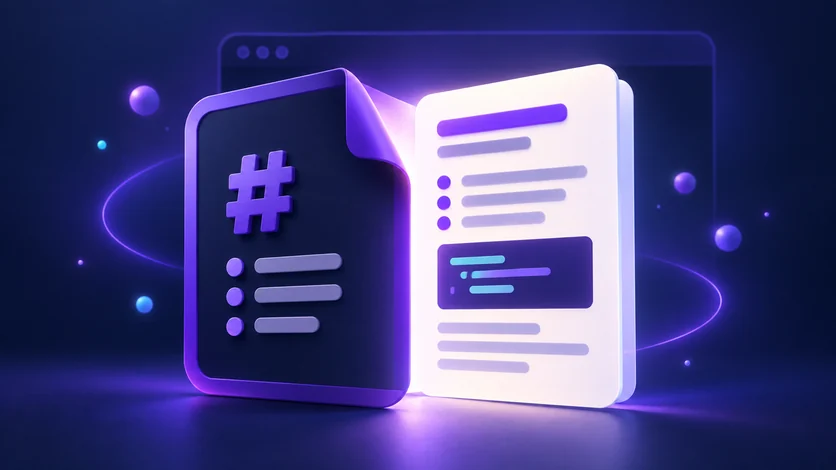
Markdown is plain text with a few formatting clues. A # at the beginning of a line can turn it into a heading. Two asterisks on each side of a word make it bold. A line starting with a dash can become a bullet point.
That is why a Markdown document sometimes looks a little unfinished in a basic text editor: you are seeing the formatting instructions alongside the words. A Markdown reader puts those instructions to work and displays the finished page.
You will come across .md files in software guides, meeting notes, writing drafts, and all sorts of documentation. You do not need to learn the symbols just to read one.
Open it in MarkPad++
Once you have installed MarkPad++, opening your first document takes three steps:
- Launch the app and press Ctrl+O.
- Choose your
.mdfile. - Press Ctrl+E to switch to reader mode.
Headings, lists, tables, and links now appear with their formatting applied. You can also drag a file straight from its folder onto the MarkPad++ window.
Here is the whole routine in one place:
| What you want to do | How |
|---|---|
Open a .md file | Ctrl+O, or drag the file onto the window |
| Read it with the formatting applied | Ctrl+E |
| Go back to editing | Ctrl+E again |
| Edit with the formatted page beside the text | Ctrl+Shift+E |
| Save your changes | Ctrl+S |
| Work through several files | Drop them on the window together; each opens in its own tab |
| Switch between light and dark | View > Theme |
| Send the document to someone else | File > Export, then PDF, Word, or OpenDocument |
Suppose you are reading a project guide and spot a note you want to change. Press Ctrl+E again, edit the text, and save with Ctrl+S. Switch back to reading when you are done. MarkPad++ keeps your place as you move between the two views, so you can carry on from the section you were working on.
That small back-and-forth is handy for your own writing, too. Draft a few paragraphs, see how they read, then return to the words.
Make the next file a double-click away
If Markdown files start turning up regularly, make MarkPad++ their default app. In Windows, go to Settings > Apps > Default apps, find the setting for .md, and choose MarkPad++. Depending on your Windows version, you may need to open the list of defaults by file type. Microsoft’s default-app guide shows the available options.
The next time you double-click a Markdown document, Windows should open it in MarkPad++.
Working through several files? Drop them onto the app together. Each gets its own tab, so you can keep a guide open while checking your notes. And if you prefer a darker page while reading, you can switch between the built-in light and dark themes under View > Theme.
What about Notepad?
Notepad can open Markdown files, too. Right-click the file, choose Open with, and select Notepad. Older versions show the plain text; newer Windows 11 versions can include basic Markdown formatting, depending on the version and settings.
For an occasional glance, that may be enough. MarkPad++ becomes especially useful when you want to move between reading, editing, and sharing the same document.
For example, if someone asks for your notes as a PDF or Word file, File > Export creates a copy in the format they need. You can keep working in Markdown while sharing something familiar with everyone else.
Start with the file you already have. Open it in MarkPad++, press Ctrl+E, and settle into the document.
Try it yourself
MarkPad++ is a free, offline Markdown editor for Windows 10 and 11. A live preview beside your text, no account, no telemetry, and export to PDF, Word and OpenDocument built in.
Written in Markdown, of course — read this article as a .md file.