Comparison
MarkPad++ vs VS Code, Typora, Obsidian, and Notepad++
An honest Markdown editor comparison: MarkPad++ strengths, missing Mermaid and LaTeX support, Windows-only availability, and where other editors do more.

A folder of meeting notes, a technical guide full of diagrams, and a personal research library ask different things of an editor.
MarkPad++ is a free Windows app for writing, reading, and exporting Markdown. It is a useful choice for everyday documents. If your work depends on equations, Mermaid diagrams, or switching between Windows and a Mac, other apps offer more.
Here is how the choices compare, including the places where MarkPad++ falls short.
The comparison
The MarkPad++ column was updated October 11, 2026, for MarkPad++ 1.0.5; the other editors were checked September 16, 2026, against their documentation. “Built in” means the feature comes with the app. Plugins, extensions, and separately installed converters are identified explicitly. Platforms refer to official desktop releases.
Math rendering here means displaying equations written with LaTeX-style syntax, rather than a complete LaTeX typesetting environment. Notepad++ can be extended; its “no built-in” entries describe the base app, not every possible plugin setup. Obsidian's optional Sync and Publish services are separate paid products; the editor itself is free. Obsidian pricing.
Where MarkPad++ earns its place
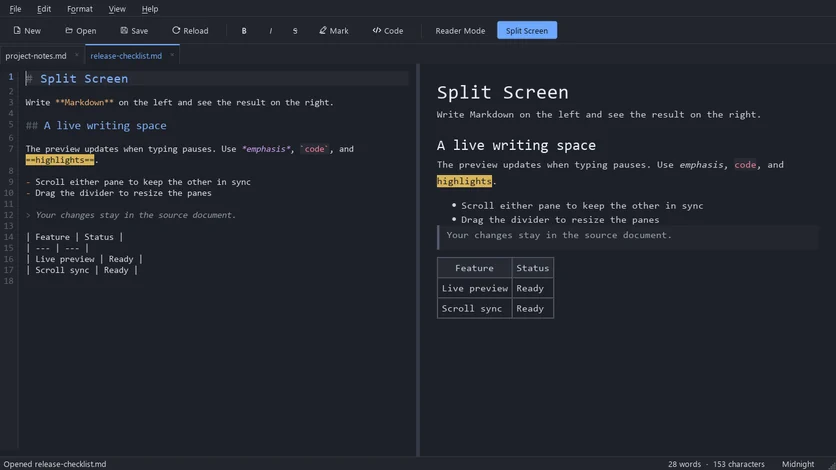
Suppose you have written a short guide and need to send it to someone who uses Word. In MarkPad++, you can edit the Markdown with a live preview beside it (Ctrl+Shift+E), press Ctrl+E to read it through, then choose File > Export to create a DOCX or PDF. Those exports run locally, with no extra converter to install. OpenDocument Text (.odt) is available too.
That is the practical appeal: a free Windows editor with reading and document export already included. Tabs let you keep reference notes open, an outline panel takes you around long documents, light and dark themes cover the everyday choices, and Editor Settings let you set your own font and Markdown colours.
Several alternatives can produce PDFs or Word files as well. MarkPad++'s advantage is having both export formats built into the app without an additional plugin or Pandoc setup.
Where another editor is the better choice
- Diagrams and equations: MarkPad++ does not render Mermaid or LaTeX-style math. VS Code, Typora, and Obsidian have built-in support for both. A technical document that relies on them will be better served there.
- Working across operating systems: MarkPad++ has no official Linux or macOS release. VS Code, Typora, and Obsidian cover all three desktop platforms.
- Formatting while you type: MarkPad++ shows a live preview beside the source, as VS Code does, but it does not format the text in place. Typora and Obsidian offer inline Live Preview.
- A connected research library: MarkPad++ has tabs, an outline and recent files, but no backlinks or graph view. Obsidian is the stronger fit for exploring connections between many notes.
- Very large documents: opening a large document in reader mode can take a few seconds, and the live preview trails a little behind on very long files. Try a representative file before moving your work over.
If you already enjoy Notepad++, adding Markdown Panel may be all you need. If you already work in VS Code, its built-in preview may fit neatly into your day. And if Typora's inline writing experience is what you love, its paid license may be worthwhile.
For ordinary notes, guides, and drafts on Windows, try MarkPad++ with a document you already know. Read it, edit a paragraph, and export a copy. That is the work it is designed to make convenient.
Try it yourself
MarkPad++ is a free, offline Markdown editor for Windows 10 and 11. A live preview beside your text, no account, no telemetry, and export to PDF, Word and OpenDocument built in.
Written in Markdown, of course — read this article as a .md file.