Tabs
Every open file gets a tab, as in Notepad++. Opening a file that is already open brings its tab forward rather than taking a second copy of it, and a file opened while the current tab is an untouched Untitled one takes that tab over instead of leaving it behind empty.
Each tab keeps its own text, undo history, caret and place in the document; an unsaved one is marked with a *. Tabs can be dragged into another order, closed with their ×, with a middle click or with Ctrl+W, and right-clicking one offers Close, Close Others, Close All and Copy Full Path.
Closing the last tab leaves an empty one rather than an empty window, and quitting asks about each modified file in turn. Files dropped on the window — several at once, if you like — and files named on the command line each open in a tab of their own.
Reader mode
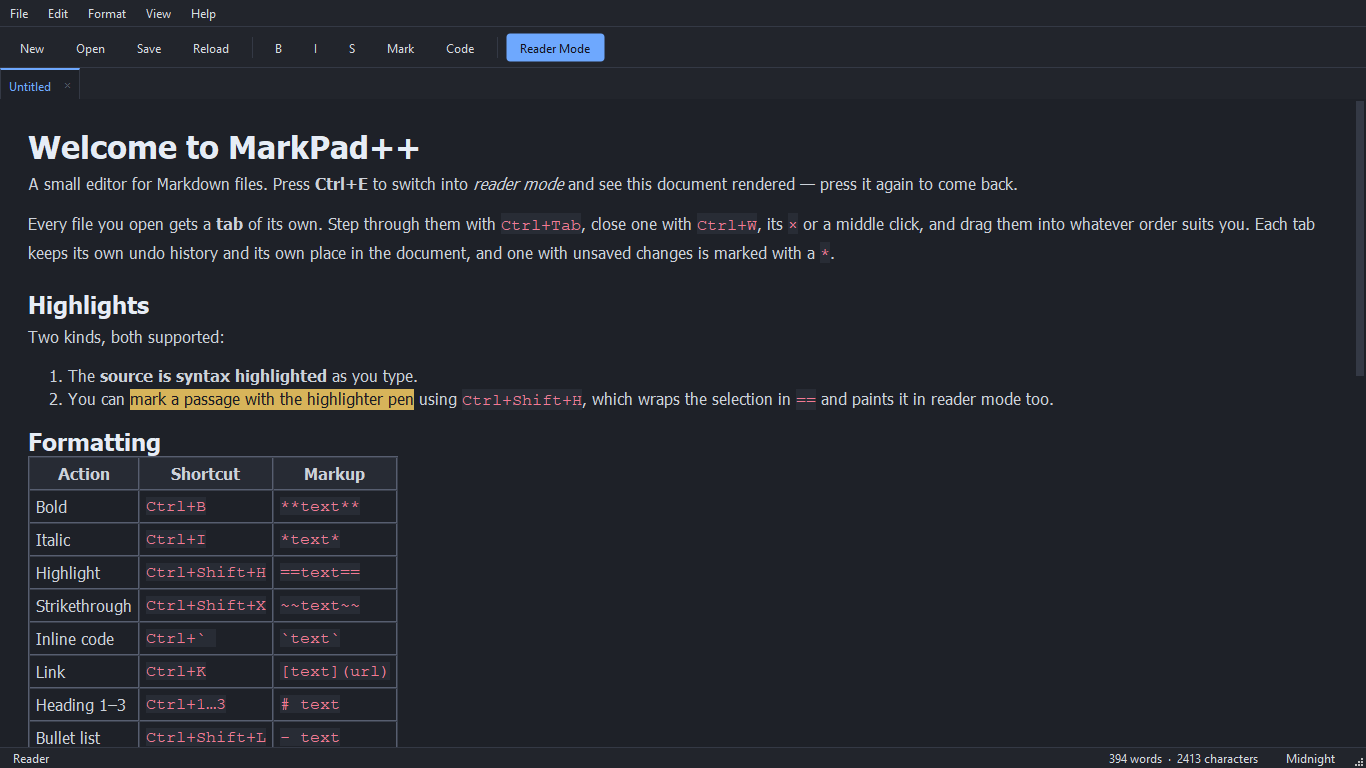
Ctrl+E toggles reader mode. The source is highlighted as you type; the rendered view picks up the same theme, and keeps your place — the reader opens at whatever the editor was showing, and scrolling the reader and coming back moves the editor to match. Toggling without scrolling leaves the editor exactly where it was.
Highlights are covered in both senses: the source is syntax highlighted, and ==text== is a marker pen that paints the passage in the editor and in reader mode.
All shortcuts
Applying a format a second time removes it, so the shortcuts toggle. Heading shortcuts replace an existing heading level rather than stacking onto it.
| Action | Shortcut | Markup |
|---|---|---|
| Bold | Ctrl+B | **text** |
| Italic | Ctrl+I | *text* |
| Highlight | Ctrl+Shift+H | ==text== |
| Strikethrough | Ctrl+Shift+X | ~~text~~ |
| Inline code | Ctrl+` | `text` |
| Link | Ctrl+K | [text](url) |
| Heading 1–3 | Ctrl+1…3 | # text |
| Bullet list | Ctrl+Shift+L | - text |
| Quote | Ctrl+Shift+Q | > text |
| Reader mode | Ctrl+E | — |
| Find | Ctrl+F | — |
| Replace | Ctrl+H | — |
| Find next | F3 | — |
| Find previous | Shift+F3 | — |
| New tab | Ctrl+N | — |
| Close tab | Ctrl+W | — |
| Close all | Ctrl+Shift+W | — |
| Next tab | Ctrl+Tab / Ctrl+PgDown | — |
| Previous tab | Ctrl+Shift+Tab / Ctrl+PgUp | — |
Files and export
File › Open Recent lists the last ten files opened or saved, most recent first; an entry that has since been moved or deleted drops off the list instead of staying there to fail again. Dropping a file anywhere on the window — the editor included — opens it rather than pasting its path. Ctrl+C copies from whichever view is showing, so the rendered text can be copied out of reader mode.
File › Export writes the rendered document (without Markdown punctuation) as PDF (.pdf), OpenDocument Text/ODF (.odt), or Microsoft Word (.docx). Export uses a print-friendly light theme, resolves relative images beside the source Markdown file, and does not change the open file or its modified state.
Files are always read and written as UTF-8.
Find and replace
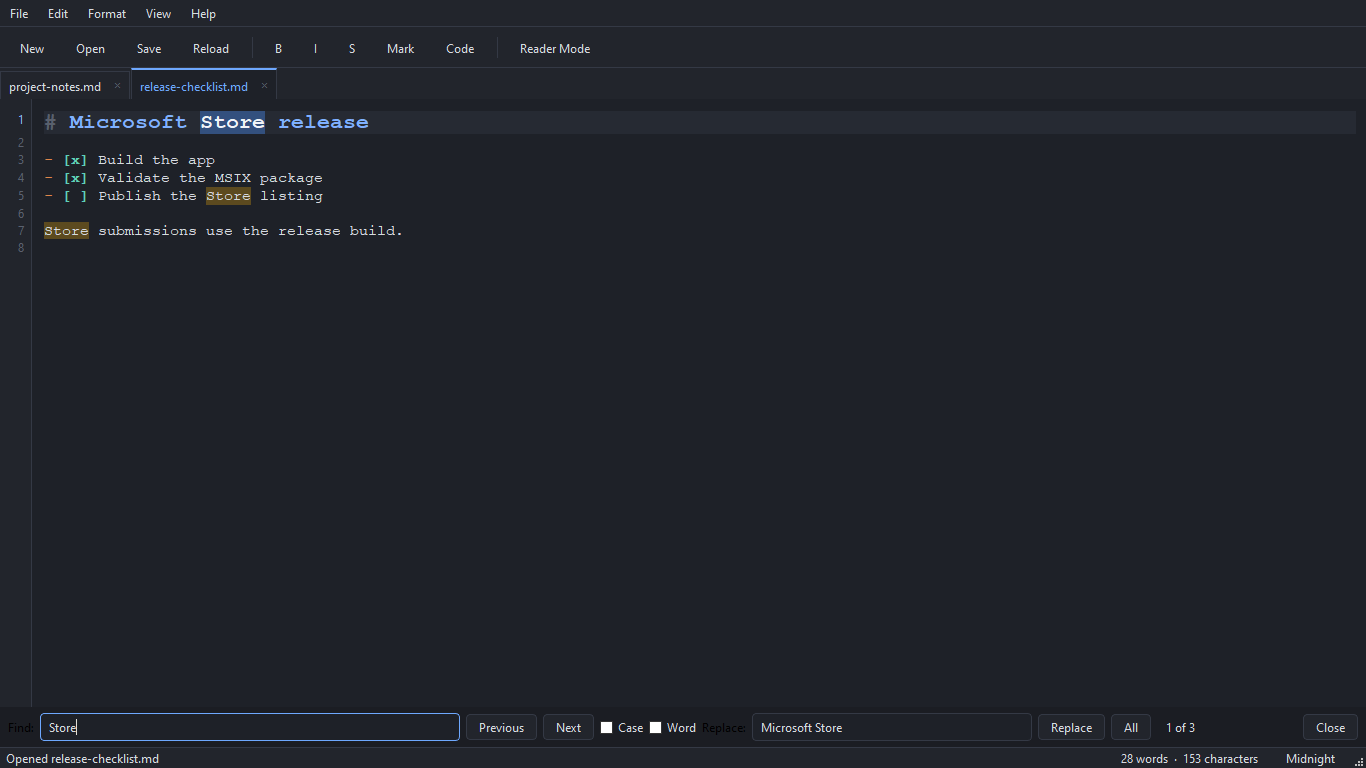
Find highlights every hit at once and wraps around, with optional case and whole-word matching. The search term is always literal — a . matches a dot, not any character. Replace All is one undo step. Searching applies to the Markdown source, so the find bar is unavailable in reader mode.
Markdown supported
ATX and setext headings, fenced (``` and ~~~) and indented code blocks, blockquotes with lazy continuation, nested ordered/unordered lists, task lists (- [x]), pipe tables with alignment, thematic breaks, emphasis, strong, strikethrough, ==highlight==, code spans, links, images, autolinks, bare URLs, backslash escapes and hard line breaks.
Themes
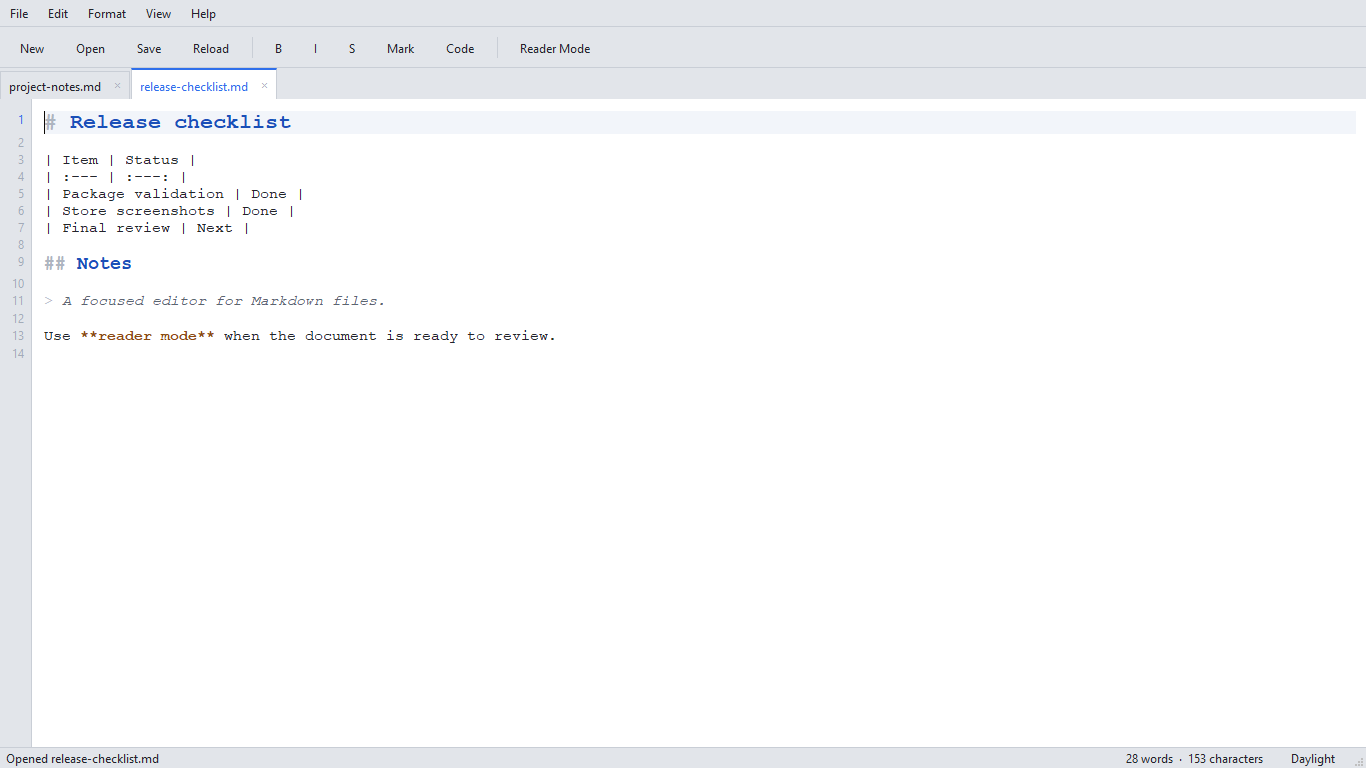
Themes are built in. Switch with View › Theme to choose the light or dark theme. A theme sets the window, menus, toolbar, editor surface and gutter; the Markdown tokens drawn in the editor; and the rendered page. User theme files are not supported in this release.
Limits
Entering reader mode costs roughly 20 ms per KiB of Markdown, so a 200 KiB document takes about four seconds; documents of a few KiB are instant. The rendered view is cached and only rebuilt when the text or the theme actually changed. Typing is unaffected — about 0.2 ms per keystroke at 400 KiB — and search stays interactive because only the hits inside the viewport are painted.
Not implemented yet: live side-by-side preview, export to HTML, regular-expression search, reference-style links, footnotes, and reopening the last session's tabs on start. Raw block-level HTML is escaped rather than passed through; a small whitelist of inline tags (<br>, <sub>, <kbd>, …) is passed through.
Requirements
Windows 10 version 1809 or newer, x64. Installed and updated through the Microsoft Store.
Get it on the Microsoft Store